 PageSnap
Guide
Change colours, fonts and button styles on any website, live
For designers, developers and marketers: try a new look on the real page before you touch any code, then copy the CSS you like.
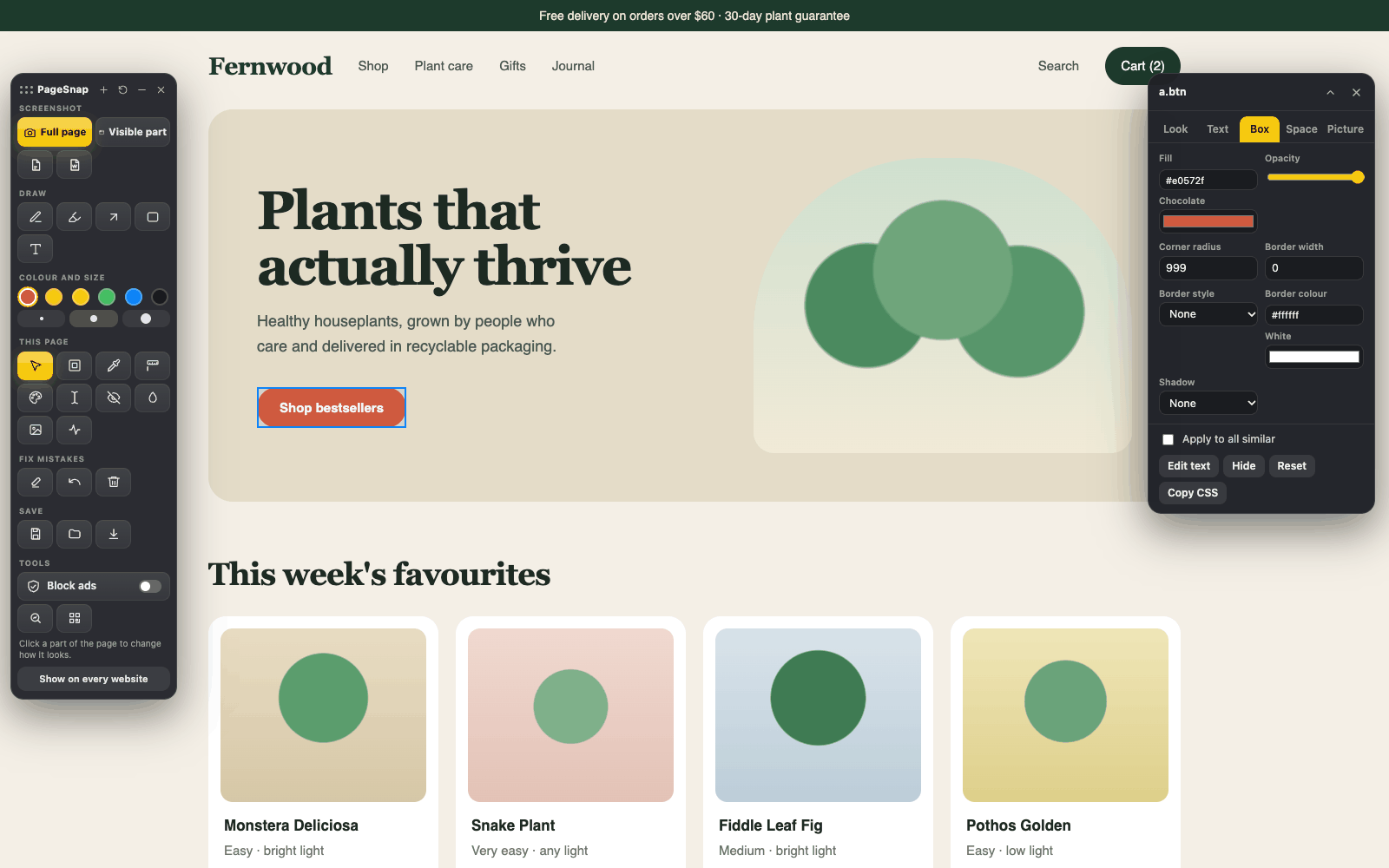
Steps
- Add PageSnap to Chrome, open a website and click the PageSnap button.
- Choose the Design tool and click a button, a heading, a picture or any box.
- Change the font, size, weight, line height, text and fill colour, corner radius, border, shadow, padding, margin, width and height. Tick Apply to all similar to restyle every button of the same kind at once.
- Try a ready-made look: Solid, Outline, Soft, Gradient, Pill and more for buttons, and Rounded, Circle, Polaroid, Grayscale and more for pictures.
- Press Copy CSS to take your changes to your own code.
Colour picker with names and codes
Use the eyedropper to pick any colour on the screen. PageSnap shows its name and its HEX, RGB and HSL codes, keeps your recent colours and copies a code with one click.
Pictures
Change a picture that is already on the page, or add your own picture, then move and resize it. Then take a full-page screenshot of your new design.
Frequently asked questions
Does it edit the real website?
No. Changes live in your open page only and disappear when you reload.
Can I copy the CSS?
Yes. Copy CSS gives you the properties you changed for the selected part.
Is it free?
Yes. There is no account and nothing is uploaded.