 PageSnap
Ad blocker · 5 min read ·
How to Block Ads on Websites and YouTube in Chrome (Manifest V3)
How ad blocking works in Chrome today, what changed with Manifest V3, and how to hide ads with one switch while supporting sites you like.
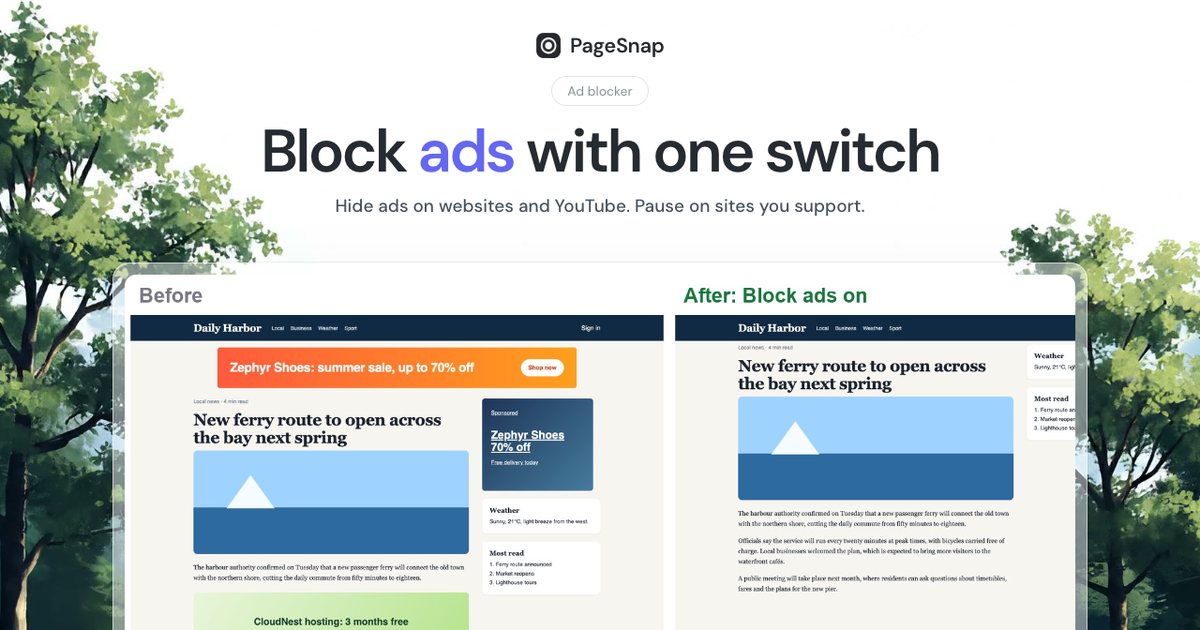
Ads slow pages down and cover content. Chrome's extension rules changed with Manifest V3, but good ad blocking is still possible. Here is how it works and what to expect.
How blocking works in Chrome
Modern extensions use Chrome's declarativeNetRequest rules: a list of patterns that tell the browser to stop requests to known ad networks, without the extension reading each page you visit. On top of that, a second layer hides leftover ad boxes.
Turn it on in PageSnap
- Click the PageSnap icon and press Block ads, or switch it on in the toolbox.
- Chrome asks for permission once, because blocking works on every website.
- Reload the page. Ads from well-known networks are blocked and empty ad boxes are hidden.
YouTube
PageSnap also removes video ads, banners and sponsored items on YouTube. YouTube changes often, so an ad can slip through now and then. Turn the switch off and on again after an update.
Support the sites you love
Use Pause on this site to allow ads on sites you want to support. Many small publishers depend on them.
Privacy
The ad blocker does not send what you browse anywhere. It only applies rules inside Chrome.
If something breaks
- Pause blocking on the site and reload.
- Check that the switch shows as on.
- Update the extension to get the latest rules.
Try PageSnap, free.
Full page screenshots, editing, OCR, PDF and Word export. No account, nothing uploaded.
More guides
Export · 4 min read
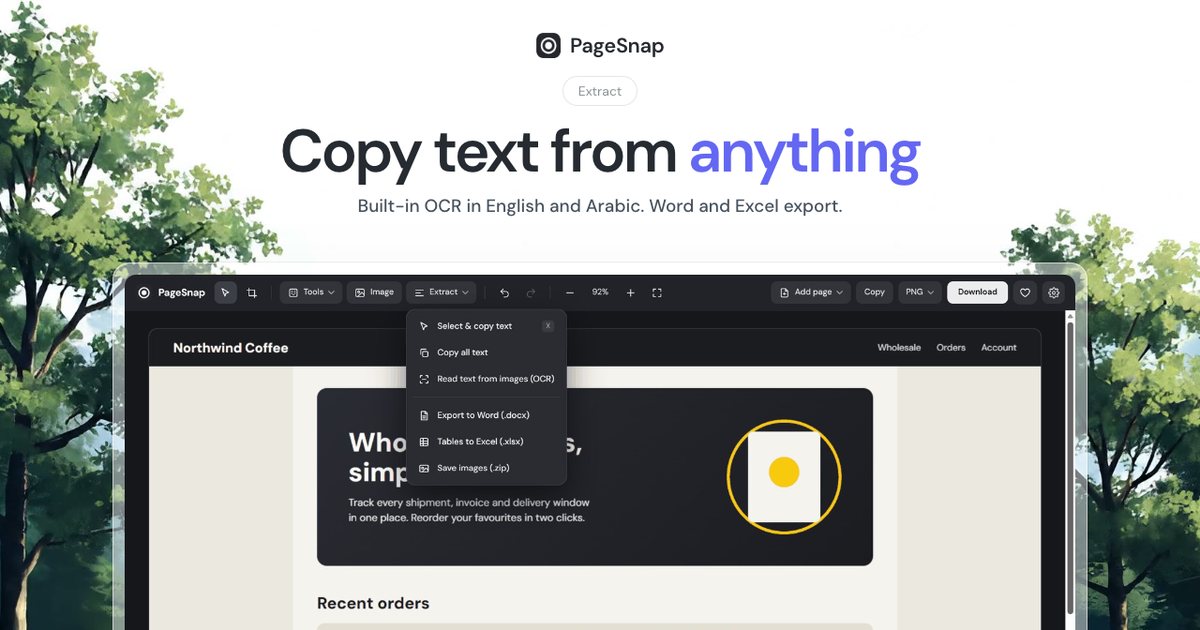
How to Export a Table From a Web Page to Excel or Word
Turn a table, list or whole article on any web page into an editable Excel or Word file in one click.
Read the guide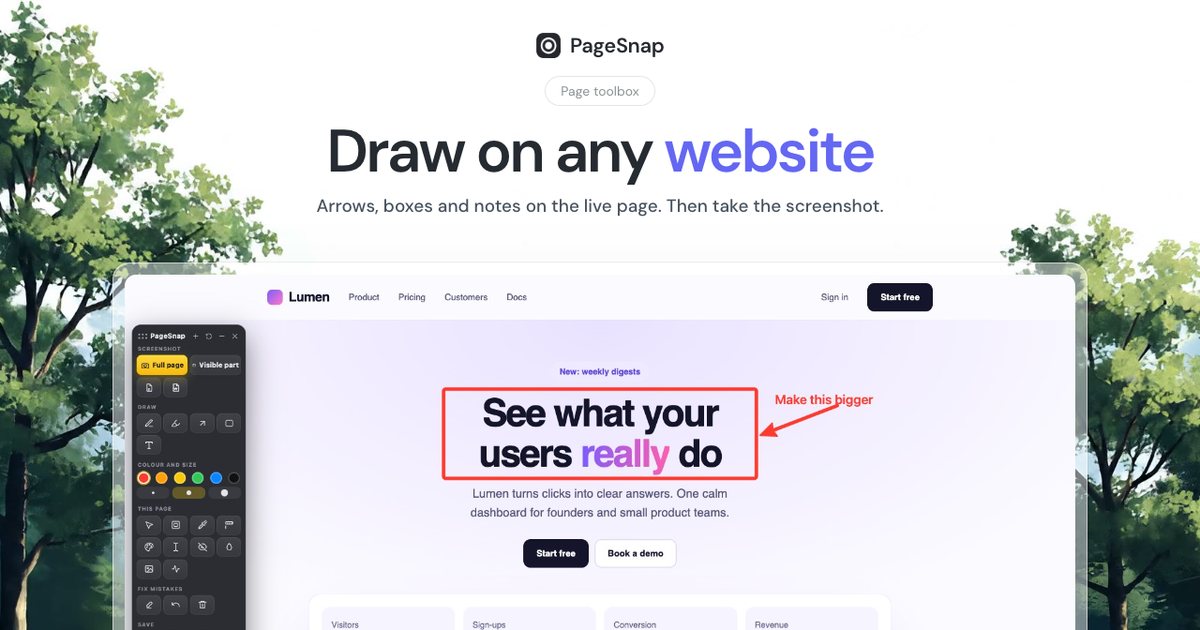
Workflow · 5 min read
How to Write a Bug Report With Screenshots Developers Love
A simple template and annotation tips: arrows, numbered steps, blur and console details that make bugs easy to fix.
Read the guide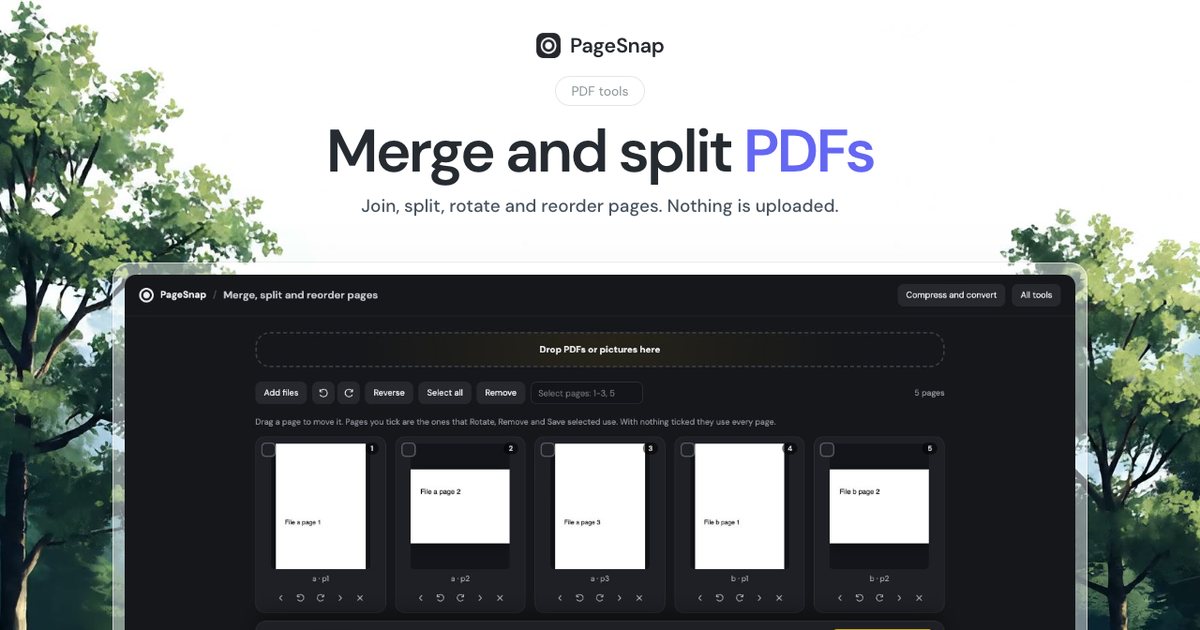
PDF · 4 min read
How to Merge and Split PDF Files Without Uploading Them
Join, split, rotate and reorder PDF pages in Chrome. Private, free, and your files never leave your computer.
Read the guide