 PageSnap
PDF · 4 min read ·
How to Merge and Split PDF Files Without Uploading Them
Join, split, rotate and reorder PDF pages in Chrome. Private, free, and your files never leave your computer.
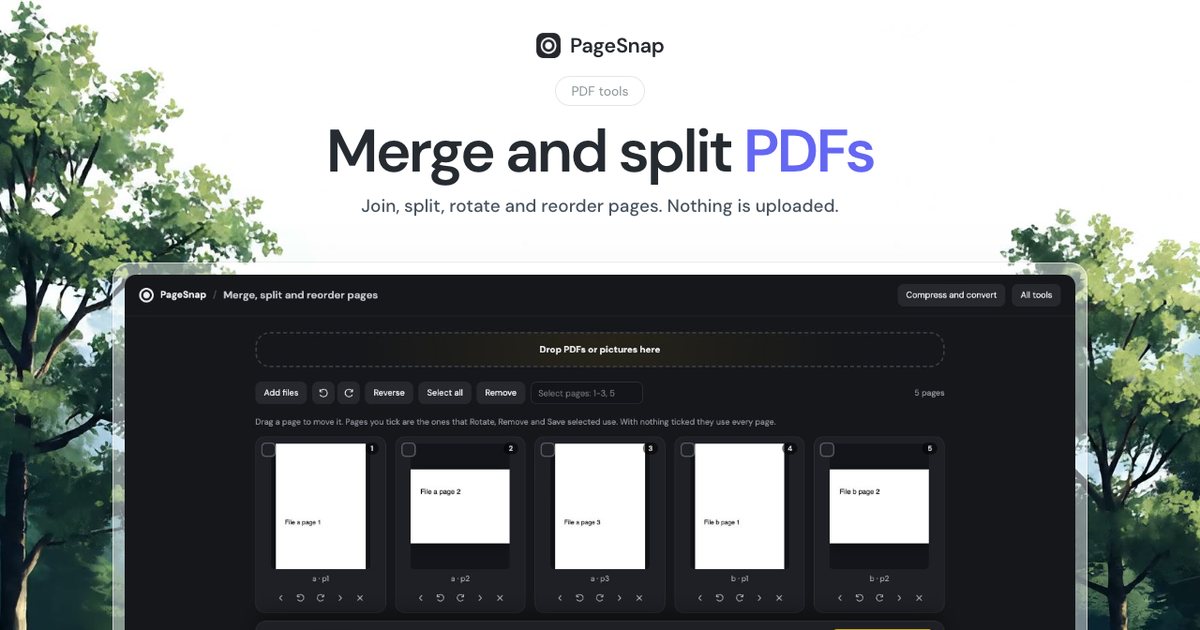
Most online PDF tools ask you to upload your file to a server. For contracts, invoices and IDs that is a risk. You can do the same jobs in your own browser.
Merge PDFs
- Open the PageSnap toolbox and choose Merge and split PDFs.
- Drop your PDFs or pictures. They join into one list of pages.
- Drag pages to put them in the order you want.
- Press Save as one PDF.
Split a PDF
- Choose Split every and set the number of pages per file.
- Or tick the pages you want and press Save selected only.
- Download everything as a ZIP.
Rotate and remove pages
Tick pages and use Rotate or Remove. With nothing ticked, the action applies to every page.
Keep quality
Text, links and quality of PDF pages stay exactly as they were. If you need a smaller file afterwards, use Compress a PDF in the same toolbox.
Why local matters
- No upload, no waiting.
- No account.
- Works offline once the extension is installed.
Try PageSnap, free.
Full page screenshots, editing, OCR, PDF and Word export. No account, nothing uploaded.
More guides
PDF · 4 min read
How to Save a Web Page as a PDF Without Cut-Off Text
Chrome's Print to PDF often splits lines across pages. Learn three ways to save a clean PDF of any web page.
Read the guide
Export · 4 min read
How to Export a Table From a Web Page to Excel or Word
Turn a table, list or whole article on any web page into an editable Excel or Word file in one click.
Read the guide
Workflow · 5 min read
How to Write a Bug Report With Screenshots Developers Love
A simple template and annotation tips: arrows, numbered steps, blur and console details that make bugs easy to fix.
Read the guide