 PageSnap
PDF · 4 min read ·
How to Save a Web Page as a PDF Without Cut-Off Text
Chrome's Print to PDF often splits lines across pages. Learn three ways to save a clean PDF of any web page.
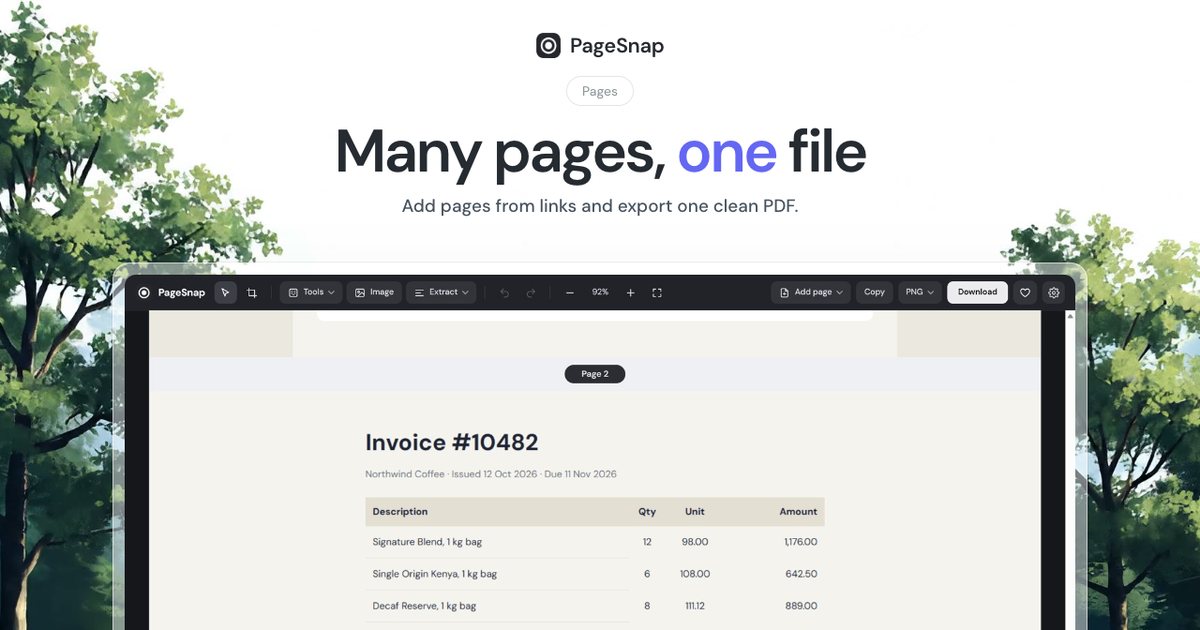
Printing a page to PDF in Chrome is easy, but the result is often messy: menus repeat, images are missing or a line of text is sliced in half at the page edge. Here is how to avoid that.
Option 1: Chrome Print to PDF
- Press Ctrl+P (Cmd+P on Mac).
- Set Destination to Save as PDF.
- Open More settings, turn on Background graphics, and try Margins: None.
This follows the website's print layout, which may hide parts of the page.
Option 2: One long page
If you want the page exactly as you see it, as one tall PDF page, use PageSnap. Capture the page, then choose PDF and the One page layout. No text is cut because there are no page breaks.
Option 3: A4 or Letter sheets with smart splitting
For printing, pick A4 or Letter. PageSnap splits on blank space between lines, so a line of text is never sliced in half. You can also make the text searchable and copyable with the Searchable PDF setting.
Common problems
- Missing images: they were lazy-loaded. A full page extension scrolls first so they appear.
- Repeated header: a sticky bar is drawn on every sheet. PageSnap shows it once.
- Huge file: use JPG quality in settings, or compress the PDF in the toolbox.
Everything is done in your browser. Your pages are never uploaded.
Try PageSnap, free.
Full page screenshots, editing, OCR, PDF and Word export. No account, nothing uploaded.
More guides
PDF · 4 min read
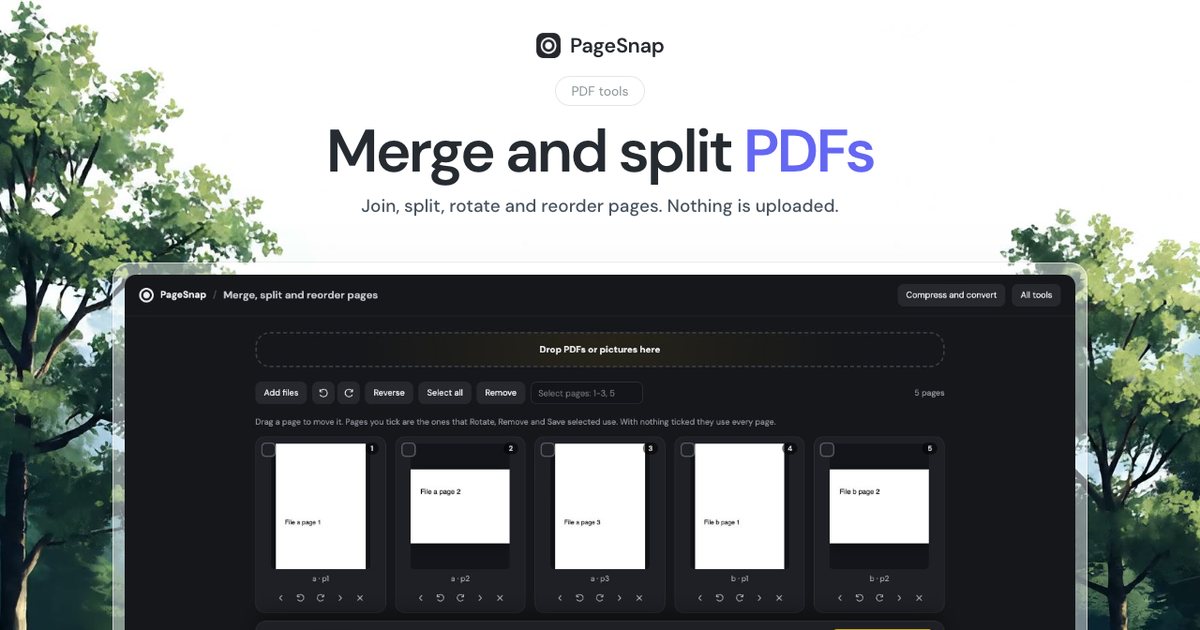
How to Merge and Split PDF Files Without Uploading Them
Join, split, rotate and reorder PDF pages in Chrome. Private, free, and your files never leave your computer.
Read the guide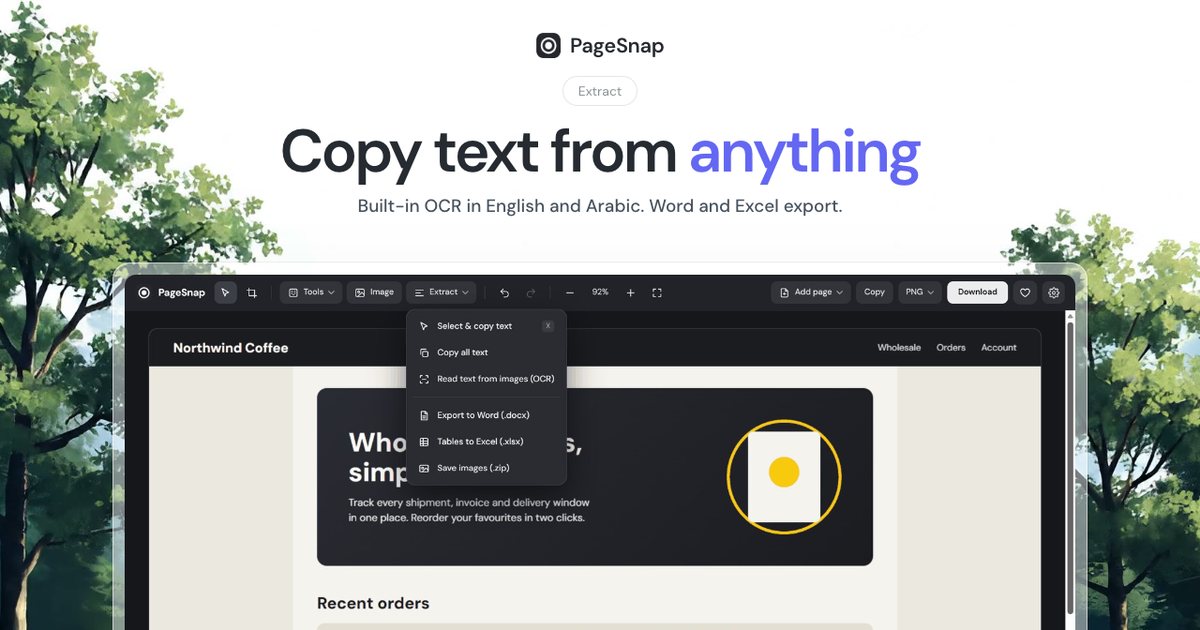
Export · 4 min read
How to Export a Table From a Web Page to Excel or Word
Turn a table, list or whole article on any web page into an editable Excel or Word file in one click.
Read the guide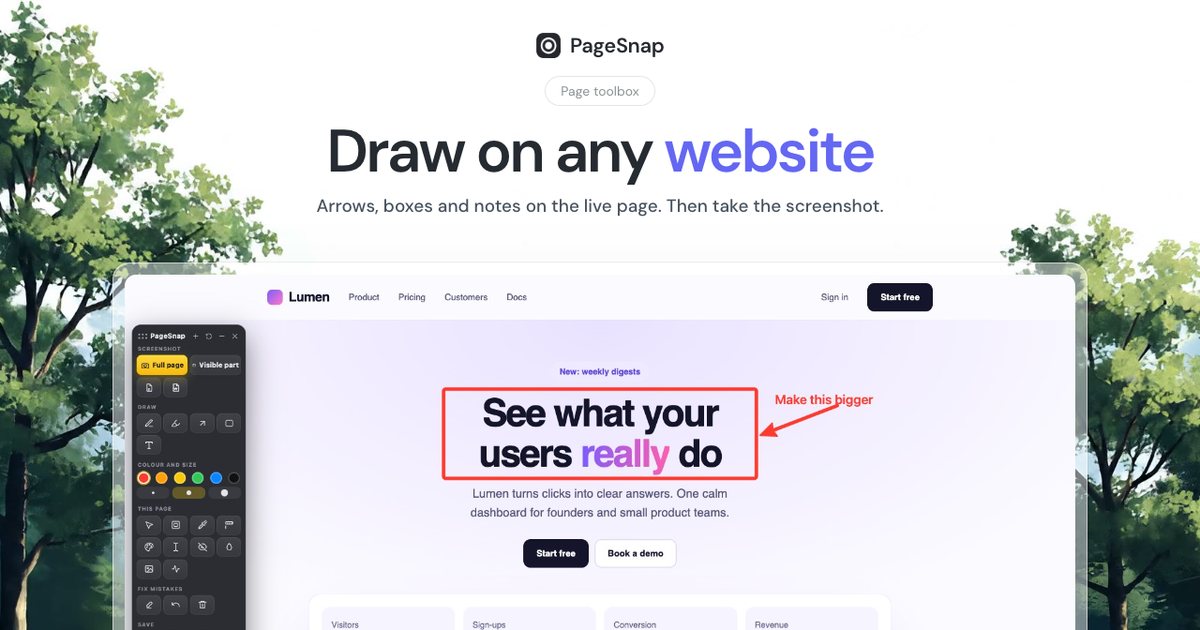
Workflow · 5 min read
How to Write a Bug Report With Screenshots Developers Love
A simple template and annotation tips: arrows, numbered steps, blur and console details that make bugs easy to fix.
Read the guide