 PageSnap
Privacy · 5 min read ·
How to Blur Sensitive Information in a Screenshot (Emails, Cards, IDs)
Share screenshots safely. How to blur or cover emails, phone numbers, card numbers and passwords, and why a blur is not always enough.
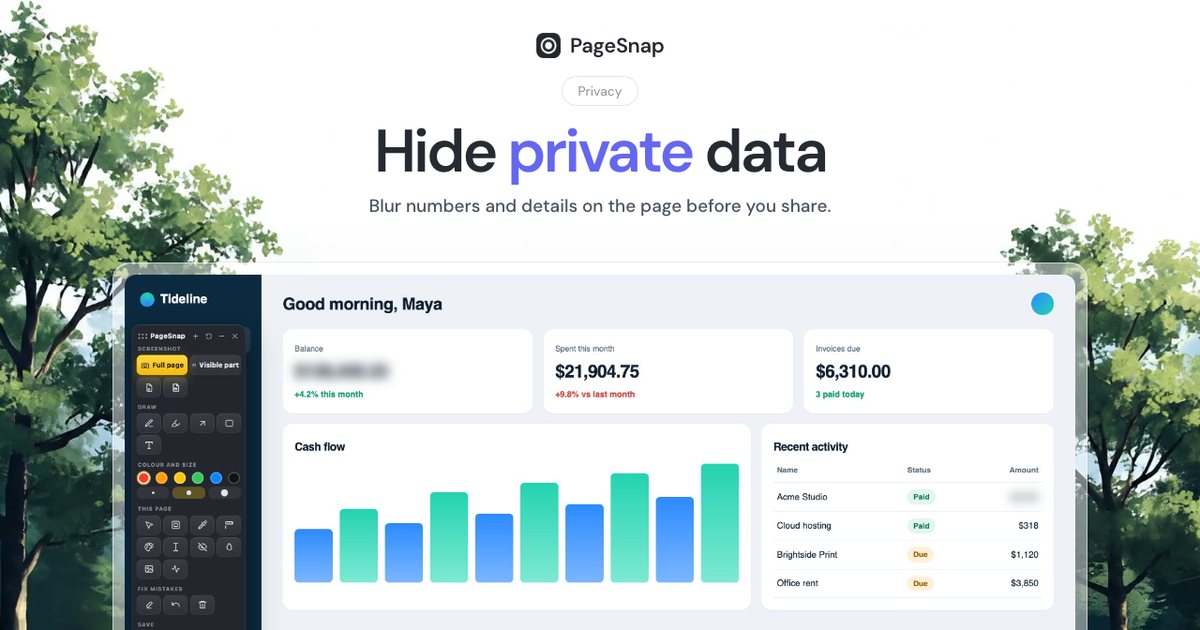
Every week someone shares a screenshot with an email address, an order number or a token visible in the corner. A thirty-second check can prevent that.
What to hide before you share
- Email addresses and phone numbers
- Card numbers, IBANs and account numbers
- Names, addresses and profile photos of other people
- API keys, tokens and passwords in code or settings pages
- Browser tabs and bookmarks that show private sites
Blur, pixelate or cover?
A light blur can sometimes be reversed or guessed, especially on short text like a number. For anything serious use a solid cover. PageSnap offers soft blur, pixelate and solid cover, so you choose.
Steps in PageSnap
- Capture the page (Alt+Shift+P).
- Press Auto-blur sensitive data. It finds emails, phone numbers, cards, IBANs and passwords by pattern.
- Check the result and add more boxes by hand where needed.
- Export. Text under a blur box is also left out of searchable PDFs and copied text.
Blur on the live page, before the screenshot
The page toolbox lets you blur or hide a part of the website itself, then capture it. Nothing changes on the real site, and a reload brings everything back.
Watch it in 40 seconds
A short checklist
- Zoom in on the final image and read every line.
- Check the file name and any metadata you add.
- Prefer cropping out what you do not need.
Blurring happens in your browser. The original never leaves your computer.
Try PageSnap, free.
Full page screenshots, editing, OCR, PDF and Word export. No account, nothing uploaded.
More guides
Export · 4 min read
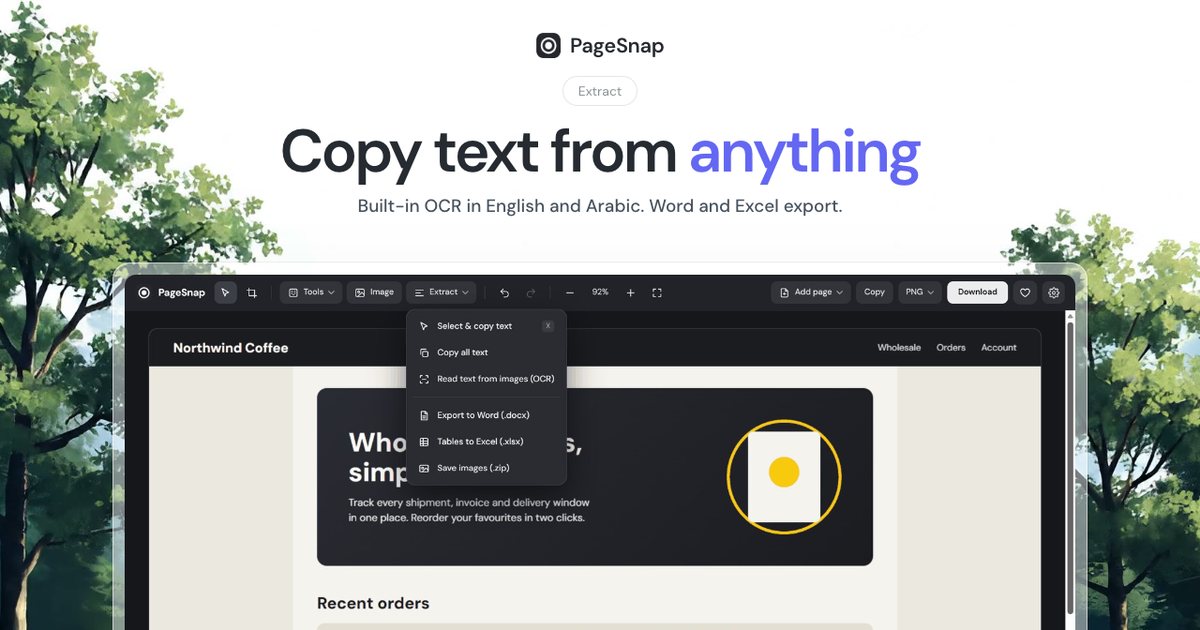
How to Export a Table From a Web Page to Excel or Word
Turn a table, list or whole article on any web page into an editable Excel or Word file in one click.
Read the guide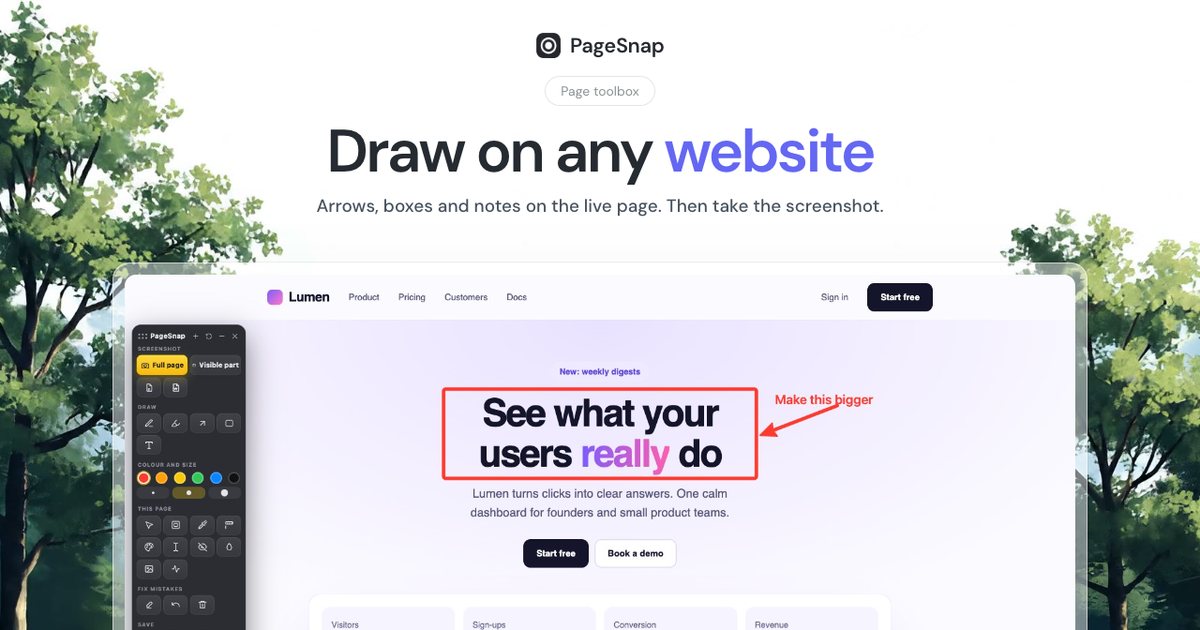
Workflow · 5 min read
How to Write a Bug Report With Screenshots Developers Love
A simple template and annotation tips: arrows, numbered steps, blur and console details that make bugs easy to fix.
Read the guide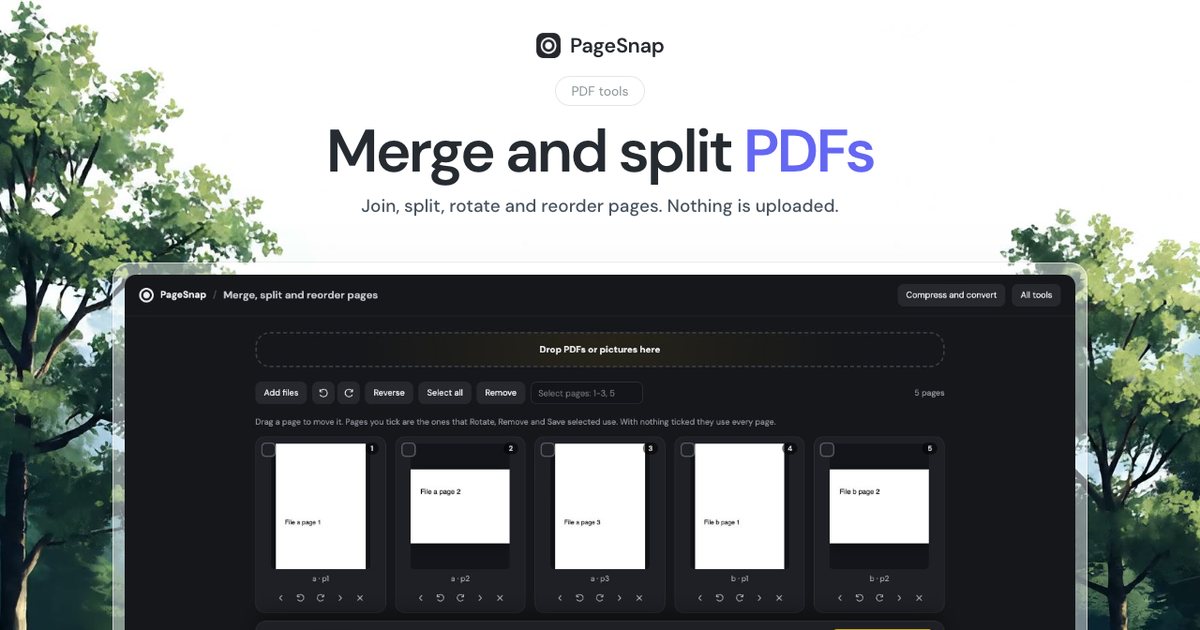
PDF · 4 min read
How to Merge and Split PDF Files Without Uploading Them
Join, split, rotate and reorder PDF pages in Chrome. Private, free, and your files never leave your computer.
Read the guide