 PageSnap
SEO · 6 min read ·
How to Check the SEO of Any Web Page in 2 Minutes (Free Checklist)
A quick SEO check for titles, descriptions, headings, images, links and speed, using a free live panel in Chrome.

You do not need an expensive tool to catch the most common SEO problems. In two minutes you can check the basics of any page, yours or a competitor's.
The five-minute basics
- Title: 50 to 60 characters, with the main topic near the start.
- Meta description: about 120 to 160 characters that make someone want to click.
- One H1: a single main heading that matches the page topic.
- Image alt text: a short description for each useful image.
- Canonical and language: a canonical link and the correct lang attribute.
Use the live panel
Open any page, click PageSnap and choose SEO and speed (live). You get a score, load times (first paint, largest paint, layout shift), page weight, requests and word count, and a short Fix first list. A search result preview shows how the page may look on Google, and you can edit the title and description to see it update.
Check speed too
Slow pages lose visitors. Look at the largest content paint and the page weight. Compress big images and remove scripts you do not need.
Check links and headings
- Fix links without readable text.
- Keep headings in order (H2 under H1, H3 under H2).
- Link to related pages on your own site.
Do not forget
- Submit your sitemap in Google Search Console.
- Write for people first. Search engines follow.
- Be patient: new pages can take weeks to rank.
Try PageSnap, free.
Full page screenshots, editing, OCR, PDF and Word export. No account, nothing uploaded.
More guides
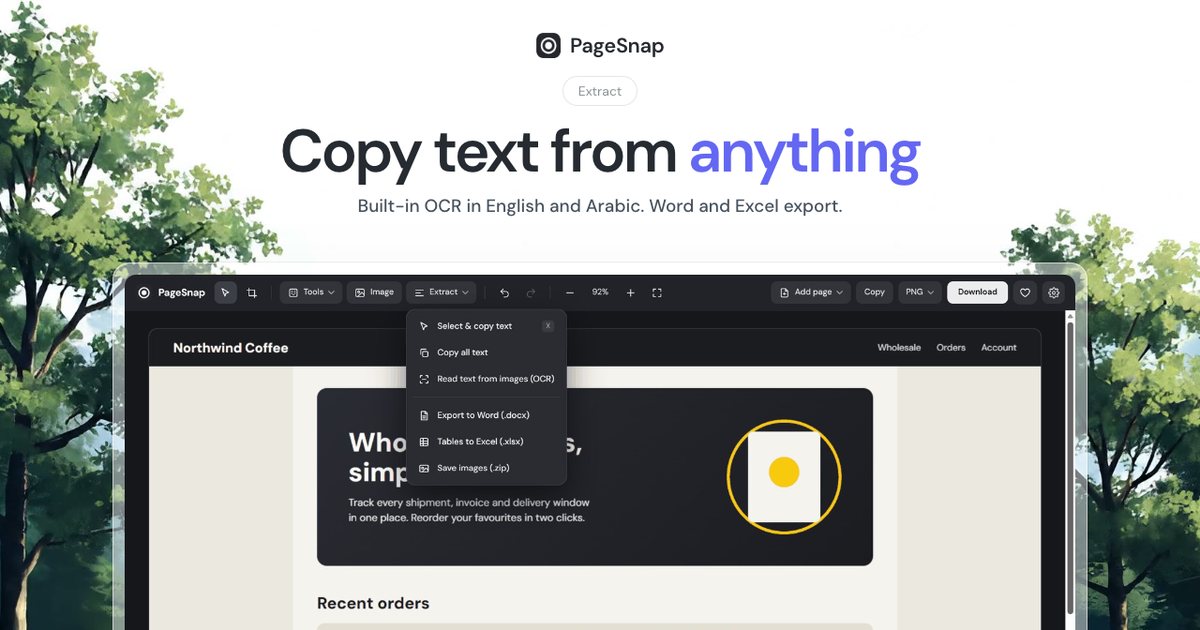
Export · 4 min read
How to Export a Table From a Web Page to Excel or Word
Turn a table, list or whole article on any web page into an editable Excel or Word file in one click.
Read the guide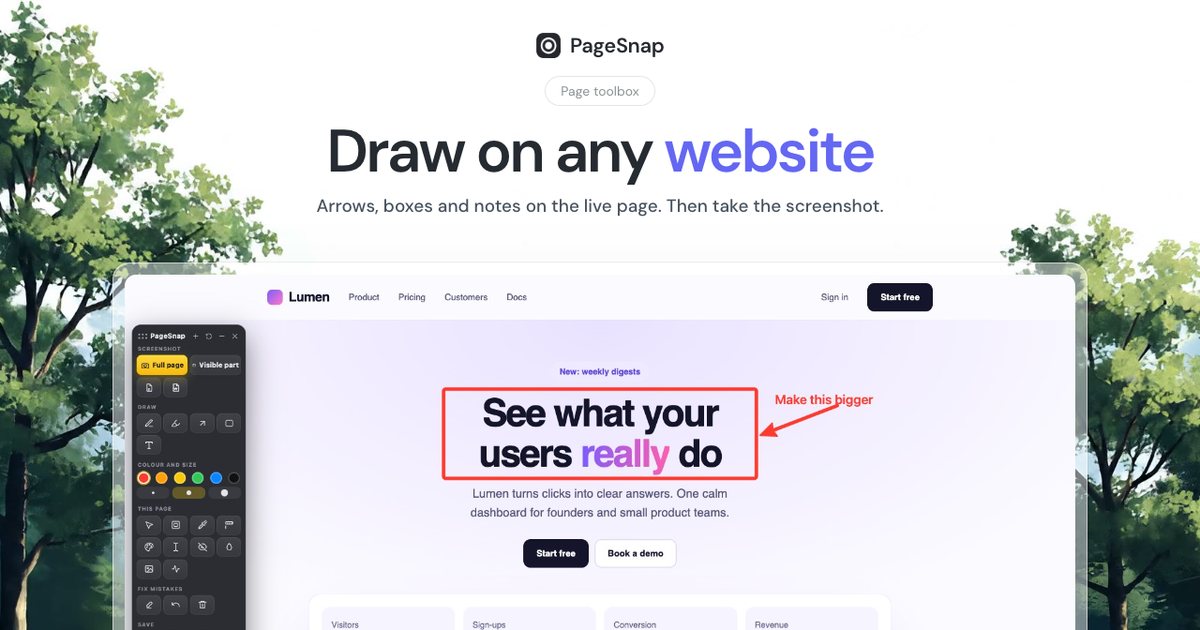
Workflow · 5 min read
How to Write a Bug Report With Screenshots Developers Love
A simple template and annotation tips: arrows, numbered steps, blur and console details that make bugs easy to fix.
Read the guide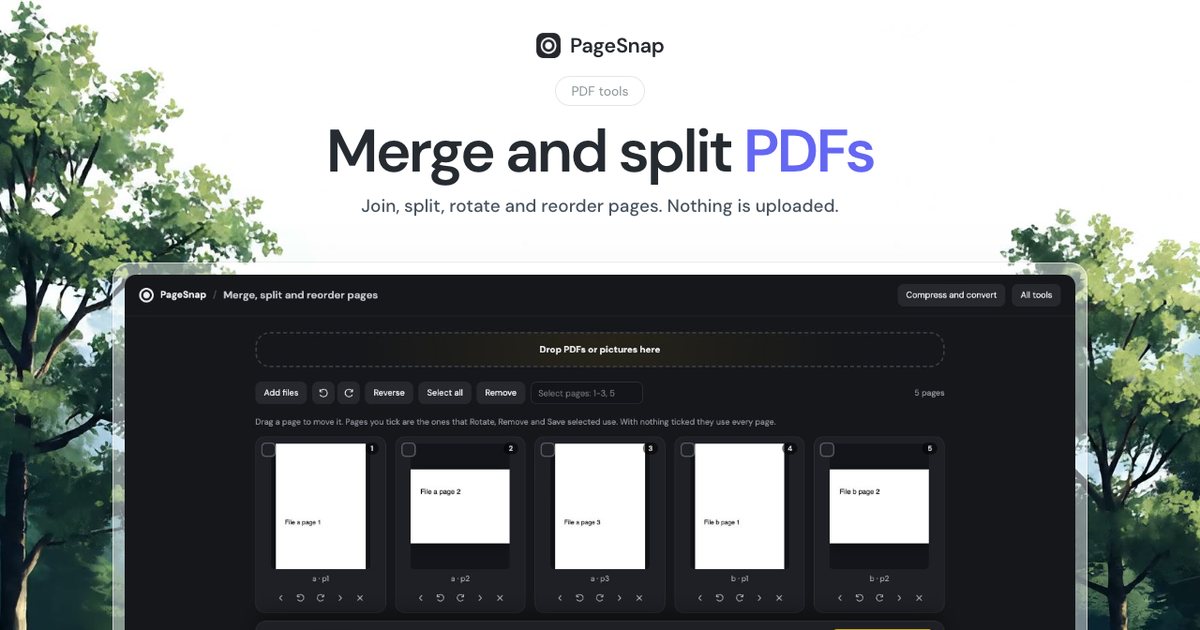
PDF · 4 min read
How to Merge and Split PDF Files Without Uploading Them
Join, split, rotate and reorder PDF pages in Chrome. Private, free, and your files never leave your computer.
Read the guide