 PageSnap
OCR · 4 min read ·
How to Copy Text From an Image or Screenshot for Free (OCR)
Turn text in a screenshot, photo or scanned PDF into text you can copy. Private OCR that runs on your computer, in English and Arabic.
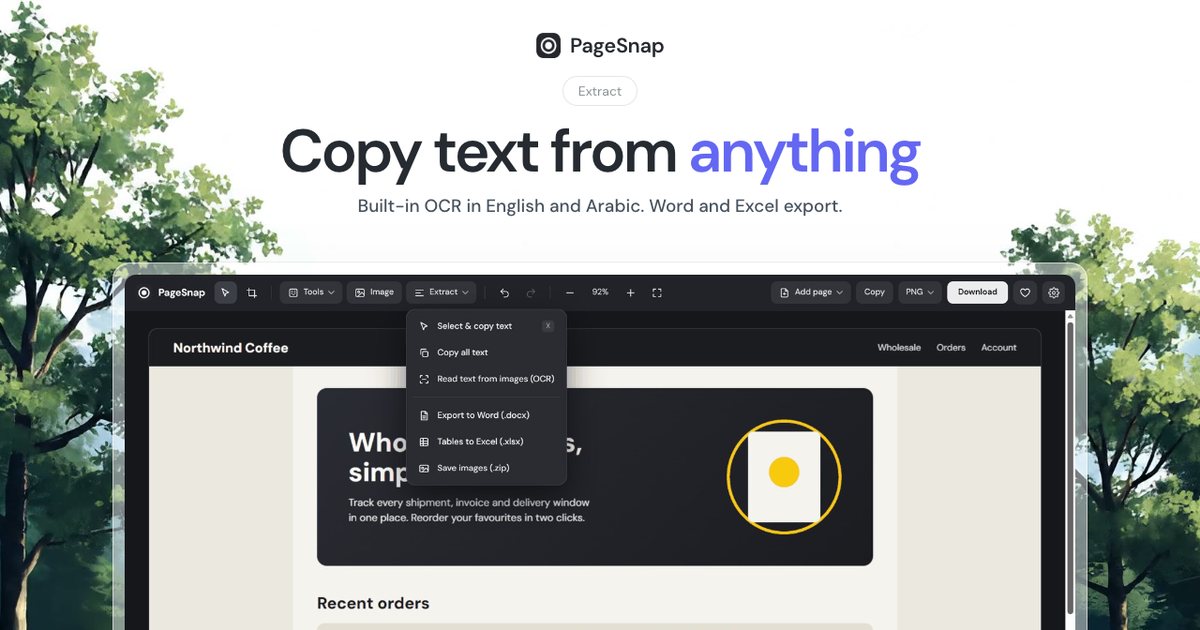
Sometimes the text you need is trapped inside a picture: a screenshot of a table, a scanned receipt, an image of a quote. OCR (optical character recognition) reads it back as text.
Two cases
- A web page screenshot. If you capture the page with PageSnap, the real page text is saved with the image, so you can drag over it and copy it. No guessing, and Arabic keeps its order.
- A picture or scan. For photos and scanned PDFs, built-in OCR reads English and Arabic on your computer.
Steps
- Capture the page, or open the picture or PDF in the PageSnap editor.
- Open Extract and choose Select text or Read text from images (OCR).
- Drag over the words and copy, or press Copy all.
- Paste into your document. You can also export as Word or Excel.
Getting better results
- Use a sharp, straight picture with good contrast.
- Zoom in on small text before reading it.
- Very stylised fonts and low-quality scans can still produce mistakes, so check important numbers.
Is it private?
Yes. OCR runs inside your browser. The image is not sent to a server.
Try PageSnap, free.
Full page screenshots, editing, OCR, PDF and Word export. No account, nothing uploaded.
More guides
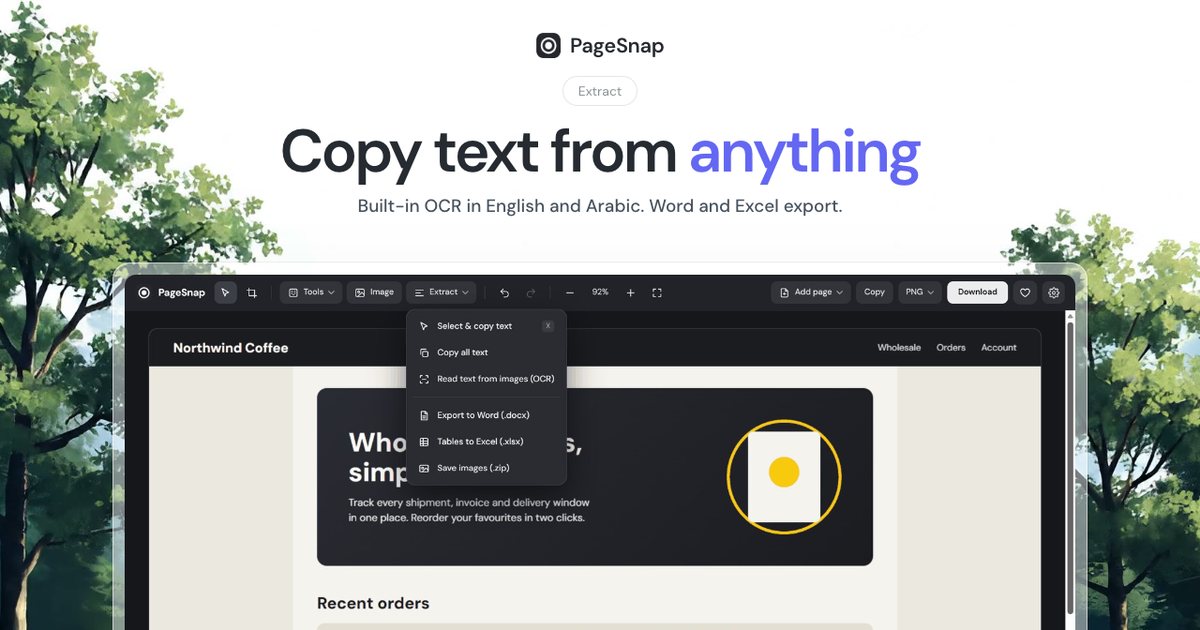
Export · 4 min read
How to Export a Table From a Web Page to Excel or Word
Turn a table, list or whole article on any web page into an editable Excel or Word file in one click.
Read the guide
Workflow · 5 min read
How to Write a Bug Report With Screenshots Developers Love
A simple template and annotation tips: arrows, numbered steps, blur and console details that make bugs easy to fix.
Read the guide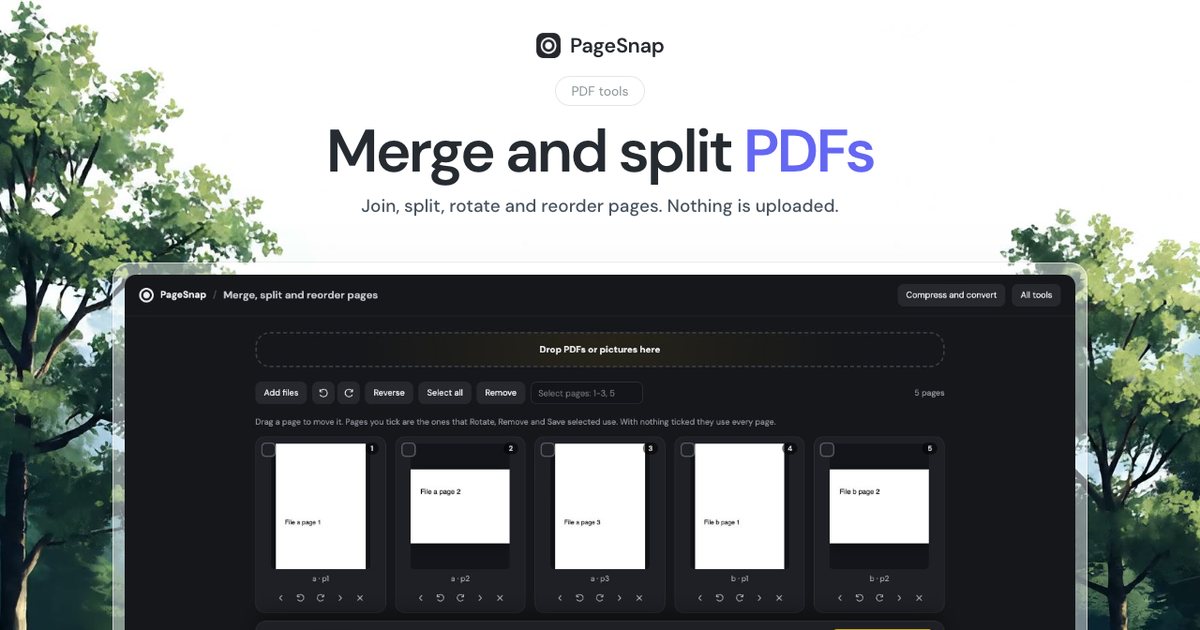
PDF · 4 min read
How to Merge and Split PDF Files Without Uploading Them
Join, split, rotate and reorder PDF pages in Chrome. Private, free, and your files never leave your computer.
Read the guide