 PageSnap
Screenshots · 4 min read ·
How to Screenshot a Whole WhatsApp Web Conversation
Capture a long WhatsApp Web chat as one image or PDF, with names blurred if you need to. Step by step for Chrome.
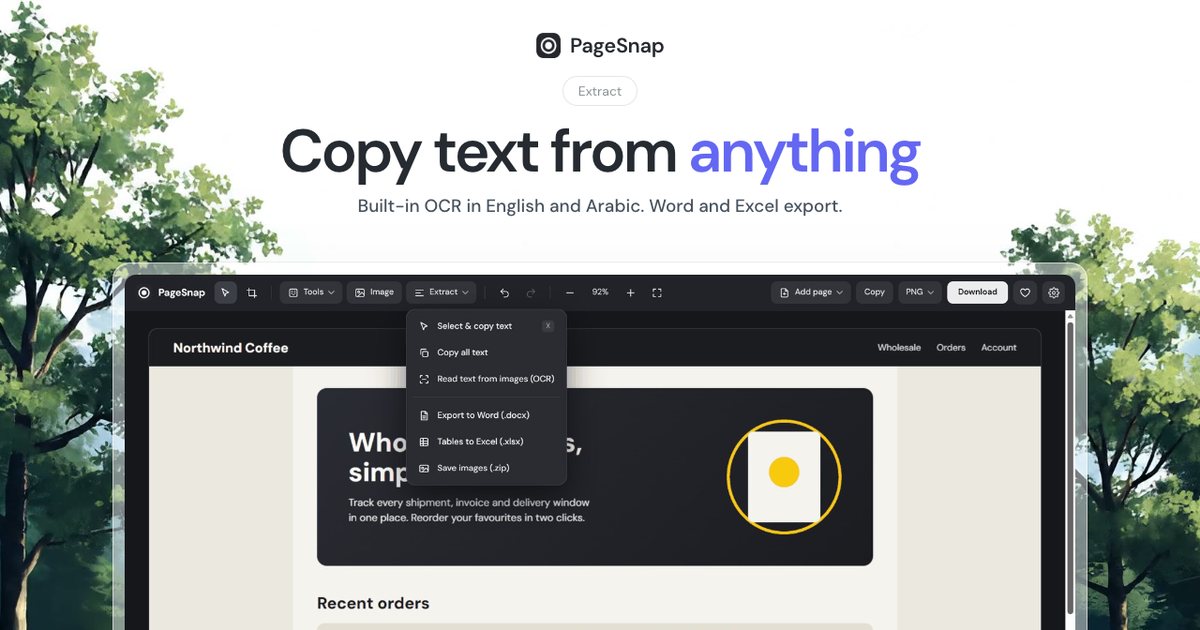
WhatsApp Web scrolls inside its own chat pane, so ordinary full page tools only capture the part you can see. Here is how to get the whole conversation.
Why normal tools fail
The page itself does not scroll. The messages scroll inside a panel. A tool that scrolls the window captures nothing new.
Steps with PageSnap
- Open web.whatsapp.com and open the chat.
- Scroll up to where you want the screenshot to start.
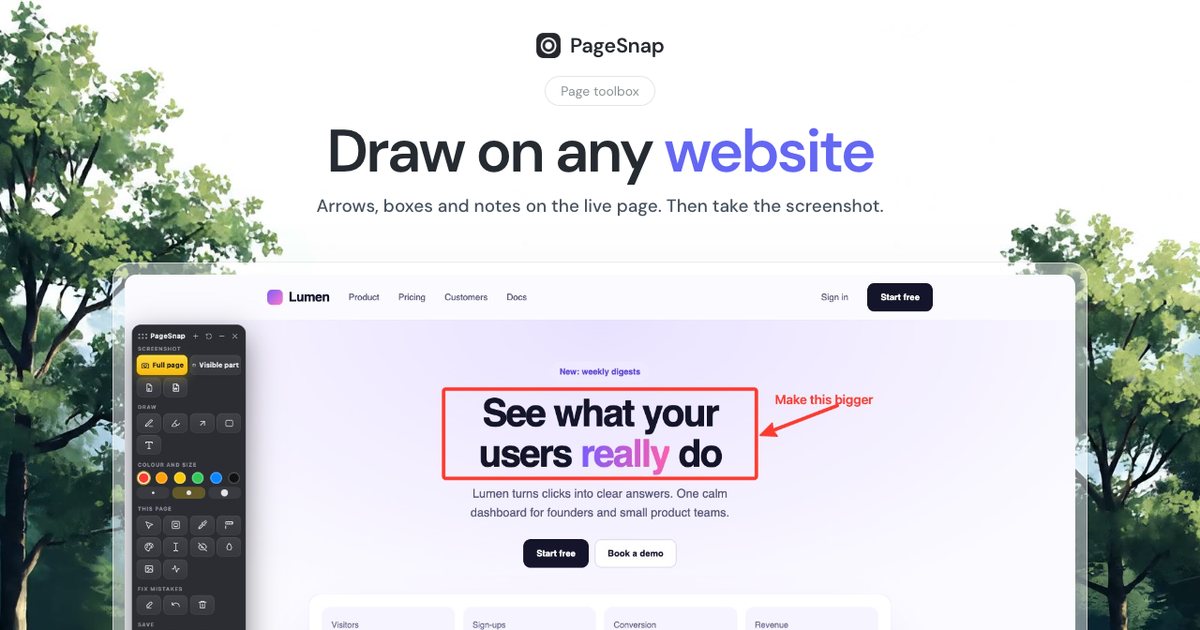
- Click PageSnap and choose Full page. It detects the scrolling pane and captures it end to end.
- Open the editor to blur names, numbers or profile photos.
- Save as PNG or as a PDF with one page per screen.
Include the chat list?
By default only the conversation is captured. If you want the whole app around it, turn on Include the whole app around chats in Settings. Be aware that this also shows the names of other chats.
Privacy first
- Blur contact names and numbers of people who did not agree to be shared.
- Do not post private chats publicly.
- For legal use, keep the original and note the date.
The capture runs on your computer. PageSnap does not read or store your messages anywhere else.
Try PageSnap, free.
Full page screenshots, editing, OCR, PDF and Word export. No account, nothing uploaded.
More guides
Screenshots · 4 min read
How to Take a Full Page Screenshot on Windows 10 and 11
Windows shortcuts only capture what you see. Here is how to capture a whole long web page on Windows, step by step.
Read the guide
Screenshots · 4 min read
How to Take a Full Page Screenshot on Mac (Chrome, Safari and Shortcuts)
Capture a whole scrolling web page on a Mac. Built-in shortcuts, Chrome DevTools and a one-click extension, with the pros and cons of each.
Read the guide
Export · 4 min read
How to Export a Table From a Web Page to Excel or Word
Turn a table, list or whole article on any web page into an editable Excel or Word file in one click.
Read the guide