 PageSnap
Email · 5 min read ·
How to Send Personal Bulk Emails from Gmail (Free, with Excel or CSV)
Send one personal email to everyone on a list from your own Gmail, with names from Excel or CSV, follow-ups, templates and a report of opens, clicks and replies.

Sending the same message to a whole list is easy in Gmail: put everyone in Bcc. But it looks like a newsletter, nobody sees their own name, and you cannot tell who read it. A mail merge sends each person their own email instead, with their name and details, from your own Gmail address.
What you need
- A Gmail or Google Workspace account (a company email over SMTP also works).
- A list in Excel or CSV, one person a row: email, first name and anything else you want to use, such as company, city, amount or booking date.
- PageSnap, which adds Bulkmail to Gmail.
Step 1: open Bulkmail in Gmail
After you add PageSnap, open Gmail. Bulkmail opens on the right like a chat, and a short tutorial shows every step the first time. You can hide it any time with the Bulkmail button in Gmail's top bar.
Step 2: describe your email
Type what you want to send, for example remind tenants that rent is due or booking confirmations for my car rental. Bulkmail picks your type of business and a matching template: newsletters, offers, invoices, receipts, booking confirmations, appointment reminders and many more. Or write your own message, or press Bulk send in any Gmail compose window to send the email you just wrote.
Step 3: add your list
Upload the Excel or CSV file, or paste lines like [email protected], Asha, Kochi. Every address is checked first: typos, dead domains, throwaway mailboxes and duplicates are flagged, and you see how many may bounce before anything is sent. Each template has a Sample list with exactly the columns it fills.
Step 4: preview, schedule and follow up
You see exactly what the first person will get. Then choose when it goes out, how fast, and whether to follow up with people who did not reply. Send yourself a test, or check whether it lands in the inbox or spam of your other Gmail account.
Step 5: send and watch the results
Press Send to everyone. Bulkmail sends from your Gmail in the background, one by one, so every email is in your Sent folder and you can keep working. The report shows who opened, clicked, replied, bounced or unsubscribed, with Excel export.
Good to know
- Gmail allows about 500 emails a day on a personal account and 2,000 on Google Workspace. Big lists are spread over days by themselves.
- Chrome needs to stay open while it sends. Closing Gmail or the panel is fine.
- For cold emails to people who do not know you, choose a slower pace and a simple look: it keeps you out of spam.
- Your lists and emails stay on your computer. See the privacy policy.
Try PageSnap, free.
Full page screenshots, editing, OCR, PDF and Word export. No account, nothing uploaded.
More guides
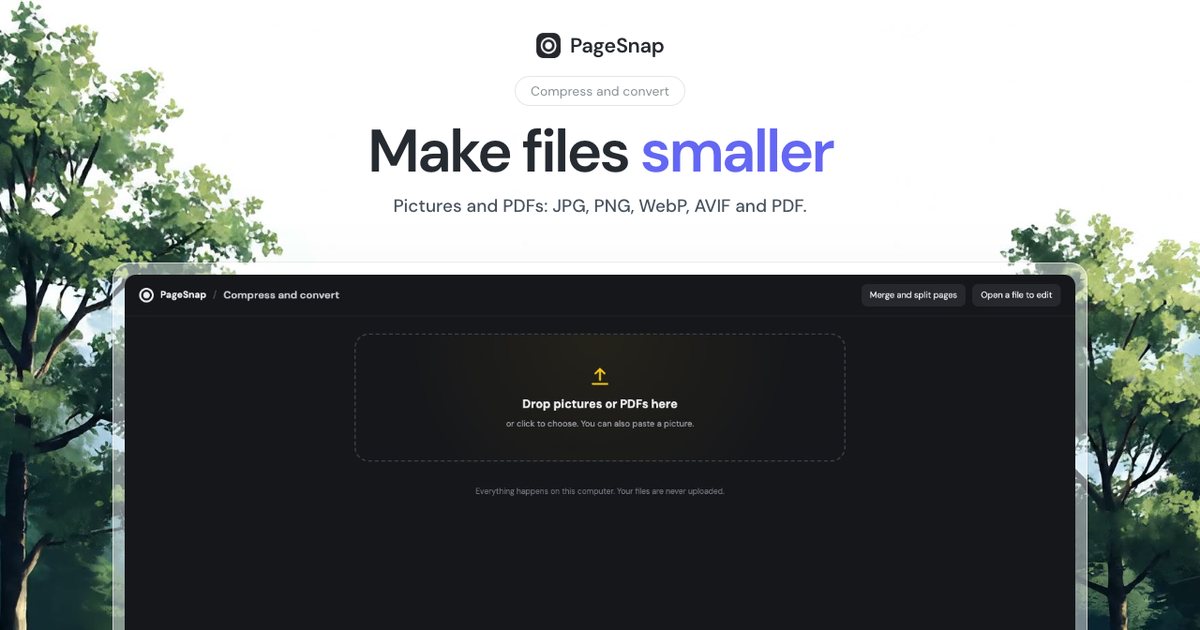
Compress · 4 min read
Compress and Convert Pictures and PDFs Without Uploading
Make photos and PDFs smaller, or change JPG, PNG, WebP, AVIF and PDF formats, many files at once. Private and free in Chrome.
Read the guide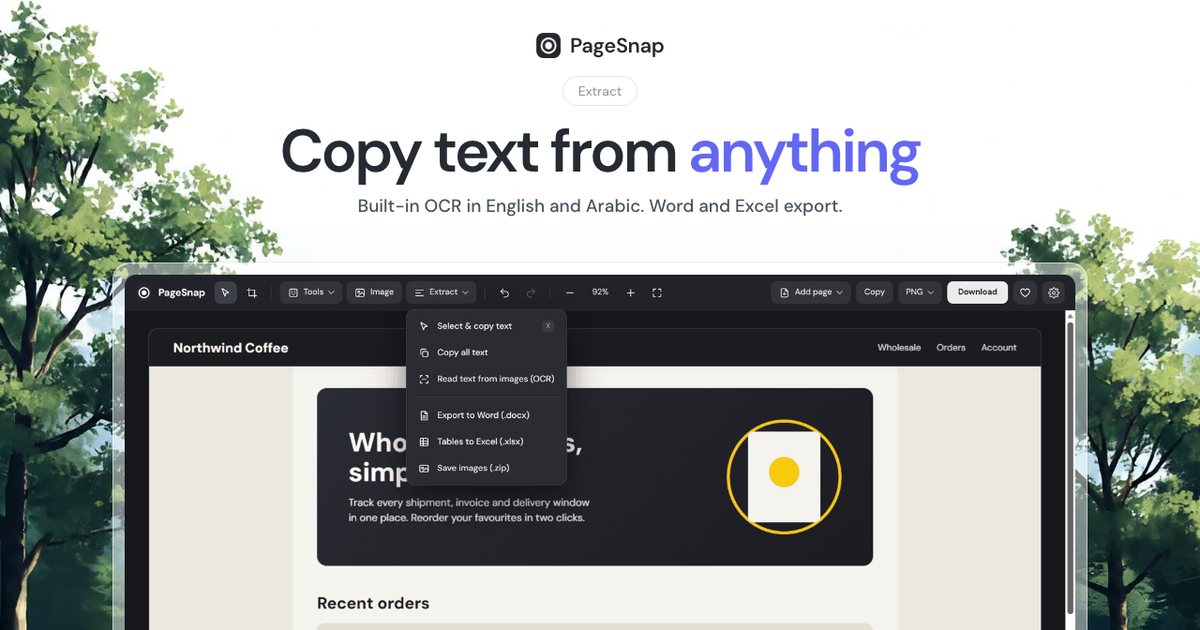
Export · 4 min read
How to Export a Table From a Web Page to Excel or Word
Turn a table, list or whole article on any web page into an editable Excel or Word file in one click.
Read the guide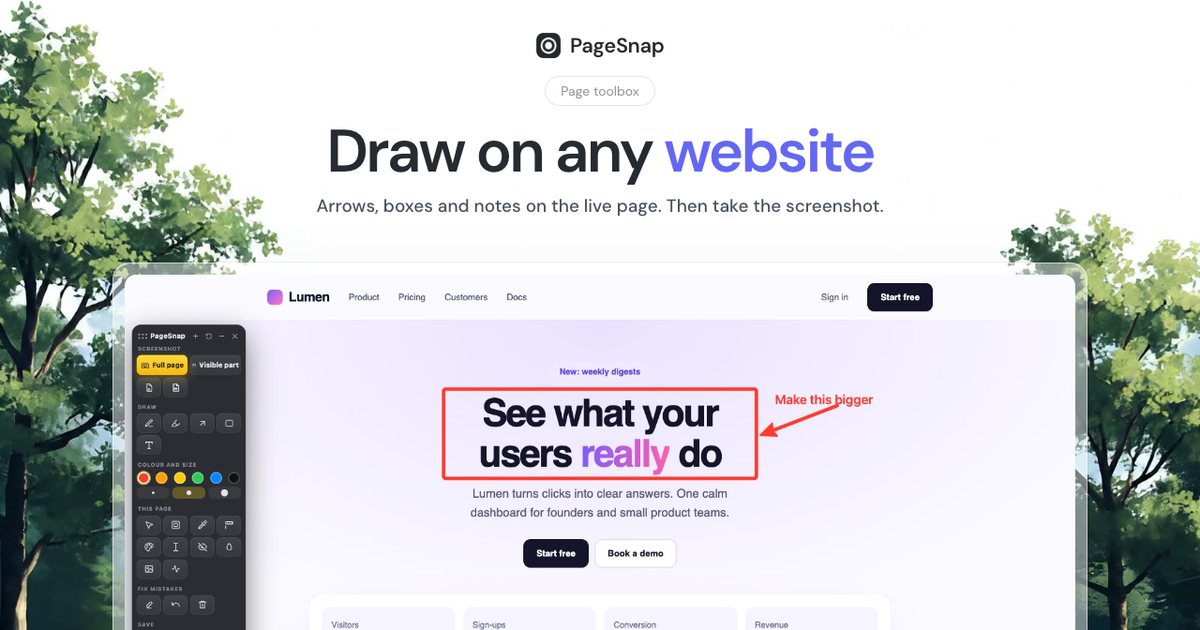
Workflow · 5 min read
How to Write a Bug Report With Screenshots Developers Love
A simple template and annotation tips: arrows, numbered steps, blur and console details that make bugs easy to fix.
Read the guide